- From the page
http://www.oracle.com/technetwork/java/javase/downloads/index.html click on the "Download
JDK" button in the Java SE 8u101 / 8u102 table near the top. (Note, the update
number may be something different than 101/102. Don't worry, about that number.
You do not need JavaFX, Java EE, or Netbeans (unless you want to use that
IDE.)
- Select your platform. (Weird fact: The License Agreement includes
Section Restrictions 3 which states "You acknowledge
that Software is not designed, licensed or intended for use in the design,
construction, operation or maintenance of any nuclear facility. "
Earlier versions of Java include restrictions on using Java for software
intended "for use in on-line control of aircraft, air traffic, aircraft
navigation or aircraft communications.")
- After downloading click the file icon to start the installer if it
does not start automatically.
- After downloading and installing Java I recommend also
downloading and installing
Eclipse, a powerful, but complex
IDE or BlueJ a simple, less powerful IDE. You are free to use whatever IDE (JCreator, BlueJ, DrJava, Emacs, VI,
Notepad and command line) you want, but I have support pages for Eclipse and
BlueJ.
- If you want to download the Java documentation.
Go to the download page where you got the JDK.
Expand the "Additional Resources" menu:
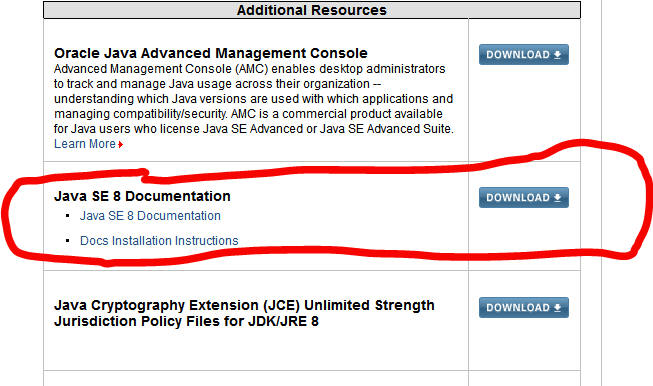
Scroll down until you see the choice for "Java SE 8 Documentation" and follow the instructions to download the documentation. The process is similar to the JDK, except you will download a zipped file and have to expand it. If you do not have a program on your computer to zip and unzip files (compress and decompress) try 7ZIP which can be downloaded for free. I find it best to bookmark the index page (the local copy on your computer) from the API folder in my web browser.
That's all. If you want more information on Java, there is an excellent tutorial at Sun's Java site.